Audio Handoff to the Mix — OMF, AAF, and the Routes That Actually Work
By Ethan Mai — 20 years in post-production, built and ran a 70-person editorial facility.
I’ve been handing cuts to mixers since the Final Cut Pro 7 days, across three generations of editing systems. The formats changed — OMF gave way to AAF, FCP7 gave way to FCPX and Premiere — but the handoff’s logic never did: the mixer needs your actual audio, laid out exactly as you cut it, with room to work. Here’s the route from each NLE, with the traps marked.
(Why audio travels as media while picture can travel as decisions: XML, EDL, AAF & OMF →.)
First, the part that never changes: track discipline
Before any export, the timeline gets laid out in strict order — on every project, in every era:
Voice (dialogue/sync sound) on the top audio tracks, music below it, sound effects below that.
This isn’t tidiness for its own sake. The mixer’s session inherits your layout — clean separation in, clean stems out. On our variety productions this was the assistant editor’s standing job before any handoff left the room.
The FCP7 era: OMF (and its 2 GB wall)
On Final Cut Pro 7 (circa 2014, when our shows ran on it), the handoff was OMF:
- Finish the sequence; select it in the Browser or click into the Timeline.
- File → Export → Audio to OMF.
- Set sample rate 48 kHz, bit depth 16-bit, and handles as needed.
- Save — that’s the OMF.
The traps:
- Audio only. OMF carries audio (levels, pan, basic crossfades) — no video.
- The 2 GB ceiling. OMF has a hard 2 GB size limit. A long episode or a track-heavy timeline blows through it — and an oversize OMF tends to corrupt or refuse to open in Pro Tools. Split the export into sections when the project is big.
- Clean before you send. On complex projects, delete unused media and consolidate before export, or the mix session starts messy.
FCPX: no native AAF — two workarounds
Final Cut Pro X cannot export AAF directly. Two real-world routes:
Route 1 — X2Pro (the industry-standard one)
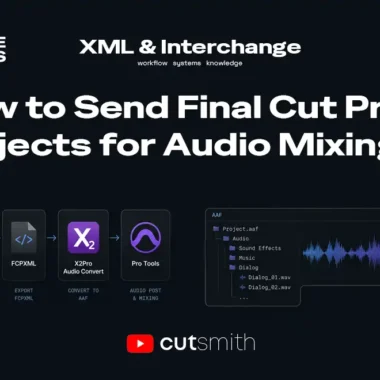
- In FCPX: File → Export XML.
- Open the XML in X2Pro Audio Convert.
- X2Pro converts the timeline to AAF, with the audio media embedded.
Two traps that catch almost everyone:
- X2Pro’s sandbox requires every asset in the project to be online — not just the timeline. An offline clip sitting unused in the project still blocks the conversion. Clean the whole library, not just the sequence.
- Media on external/non-local drives can throw permission errors — when X2Pro’s permission dialog appears, re-point it to the folder where the flagged file actually lives.
Route 2 — DaVinci Resolve as a free relay
- Export the XML from FCPX.
- Import into free DaVinci Resolve; line up the audio tracks.
- On the Deliver page, use the Pro Tools preset — it exports an AAF.
The honest caveat: FCPX→Resolve compatibility is not fully predictable, so this route is less stable than X2Pro. It’s the no-budget fallback, not the standard.
Premiere: native AAF, with two habits
Premiere exports AAF directly — the cleanest modern route:
- Clean the timeline first: no nested sequences, delete video tracks the mixer doesn’t need.
- File → Export → AAF.
- In the settings, match the mixer’s asks (mixdown or not, sample rate, file format).
- Export — Premiere writes the .aaf plus a folder of the audio media.
The traps:
- Complex audio effects don’t translate. EQ, reverb, and the like rarely survive into Pro Tools intact — strip complex effects or freeze/render those tracks before export rather than letting them half-arrive.
- Leave handles. Add frame handles in the export settings so the mixer has trim room on every clip.
The return trip
Pro Tools sends back a consistent package: a Mix.wav (the full mix), plus split stems — voice, music, SFX as separate WAVs.
- Standard case: drop Mix.wav straight onto the timeline and composite. Done.
- If something needs re-balancing after the fact: bring the stems back onto the timeline instead and adjust there — that’s exactly what the split stems are for.
Common problems
- AAF opens in Pro Tools but media is offline → media didn’t embed/travel. On the X2Pro route, suspect the all-assets-online sandbox rule above.
- OMF won’t open / corrupts → almost always the 2 GB ceiling; re-export in sections.
- Mixer says the session layout is a mess → track discipline (voice/music/SFX order) wasn’t enforced before export.
- Effects sound different in the mix session → complex effects don’t translate; strip or render before export.
- Format background → (See: XML, EDL, AAF & OMF →)
Ethan Mai has spent 20 years in video post-production and now writes FreeVaults, an independent publication on editorial workflows and infrastructure. Notes and ongoing research: @EthanMaiBuilds.